


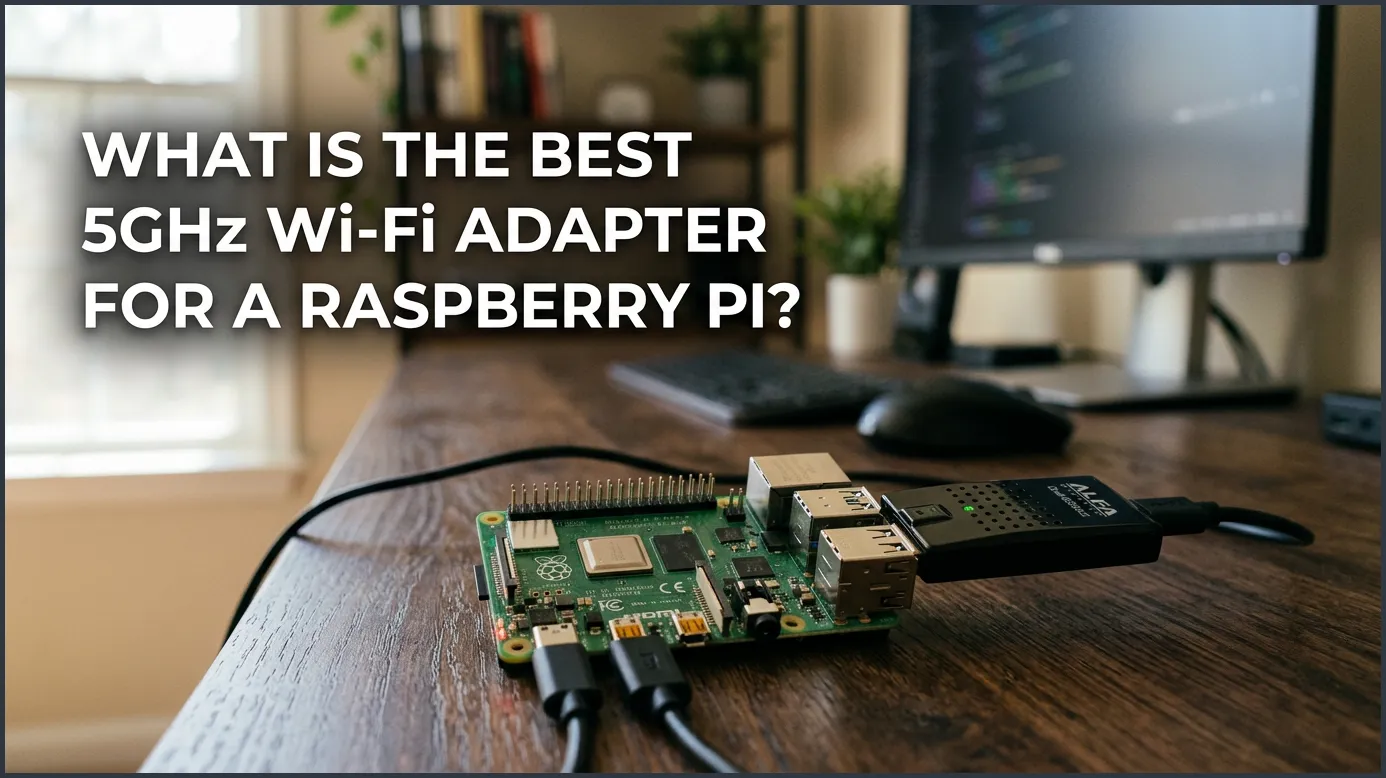
The best 5GHz Wi-Fi adapter for a Raspberry Pi is one built on the MediaTek MT7612U or MT7610U chipset. These adapters offer native driver support in Raspberry Pi OS, meaning they work instantly without tedious software installations. Choosing a compatible plug-and-play model ensures fast, stable speeds for streaming, gaming, and server hosting.
Imagine you have just finished building a fantastic new home server. You want to stream high-definition movies to your living room. You boot up your tiny computer, sit back on your couch, and press play. Instead of a smooth movie, you get a spinning wheel. The video buffers. Your download speeds crawl. This is a very common and frustrating problem for many makers.
The built-in wireless chip on many Raspberry Pi boards is small. Its tiny antenna is printed right onto the circuit board. If you put your Pi inside a sleek metal case, the signal drops even more. When your network slows down to a crawl, you might ask: What Is the Best 5GHz Wi-Fi Adapter for a Raspberry Pi?
Finding the right USB dongle can feel like a maze. Some units work the moment you plug them in. Others require you to type complex code into a terminal just to get a signal. In this guide, we will break down the top options. We will look at why certain chips work better than others. We will also help you choose the perfect match for your next big project.
Key Takeaways
- MediaTek is King: Adapters with MT7612U and MT7610U chipsets work out of the box without manual driver installations.
- Avoid Driver Headaches: Many cheap Realtek adapters require manual code compilation, which can break during system updates.
- Better Range: External USB adapters with physical antennas offer far superior range compared to the Pi’s tiny built-in wireless chip.
- USB 3.0 Matters: For maximum 5GHz speeds, plug your adapter into one of the blue USB 3.0 ports on your Raspberry Pi.
- Power is Crucial: High-speed 5GHz adapters draw more power, so use a high-quality, official power supply to prevent crashes.
📑 Table of Contents
- Why Should You Upgrade to 5GHz Wi-Fi?
- Top Contenders: What Is the Best 5GHz Wi-Fi Adapter for a Raspberry Pi?
- The Critical Factor: Driver Support and Linux Compatibility
- Step-by-Step: How to Install Your New Adapter
- Power Requirements and Hardware Tips
- Performance Tips and Troubleshooting
- Conclusion
Why Should You Upgrade to 5GHz Wi-Fi?
Most basic home routers use two main frequency bands. These are 2.4GHz and 5GHz. The older 2.4GHz band is very crowded. Your microwave, your Bluetooth speaker, and your neighbor’s router all share this space. This heavy traffic causes interference. It slows down your connection and increases lag.
The 5GHz band is different. It is much wider and cleaner. Think of it like a fast express lane on a highway. It offers faster speeds and a more stable connection. If you want to run a web server, stream media, or transfer large files, 5GHz is a must.
The Problem with Internal Antennas
The Raspberry Pi 3, 4, and 5 do have built-in wireless chips. However, these chips are tiny. They lack the power to reach through thick walls. An external USB adapter solves this issue. It has a larger physical antenna. Some external models even have long, adjustable antennas. This design helps your Pi catch a strong signal from far away.
When Does an Upgrade Make Sense?
If your Pi sits right next to your router, the built-in chip is fine. But if your Pi is in the garage, the basement, or behind a TV, you need help. An external 5GHz adapter will give you the boost you need. It turns a weak, choppy connection into a rock-solid link.
Top Contenders: What Is the Best 5GHz Wi-Fi Adapter for a Raspberry Pi?
When you shop online, do not just look at the brand name on the box. The brand does not matter as much as the chip inside the device. The chip controls how the adapter talks to your Pi. Let us look at the best chips on the market today.
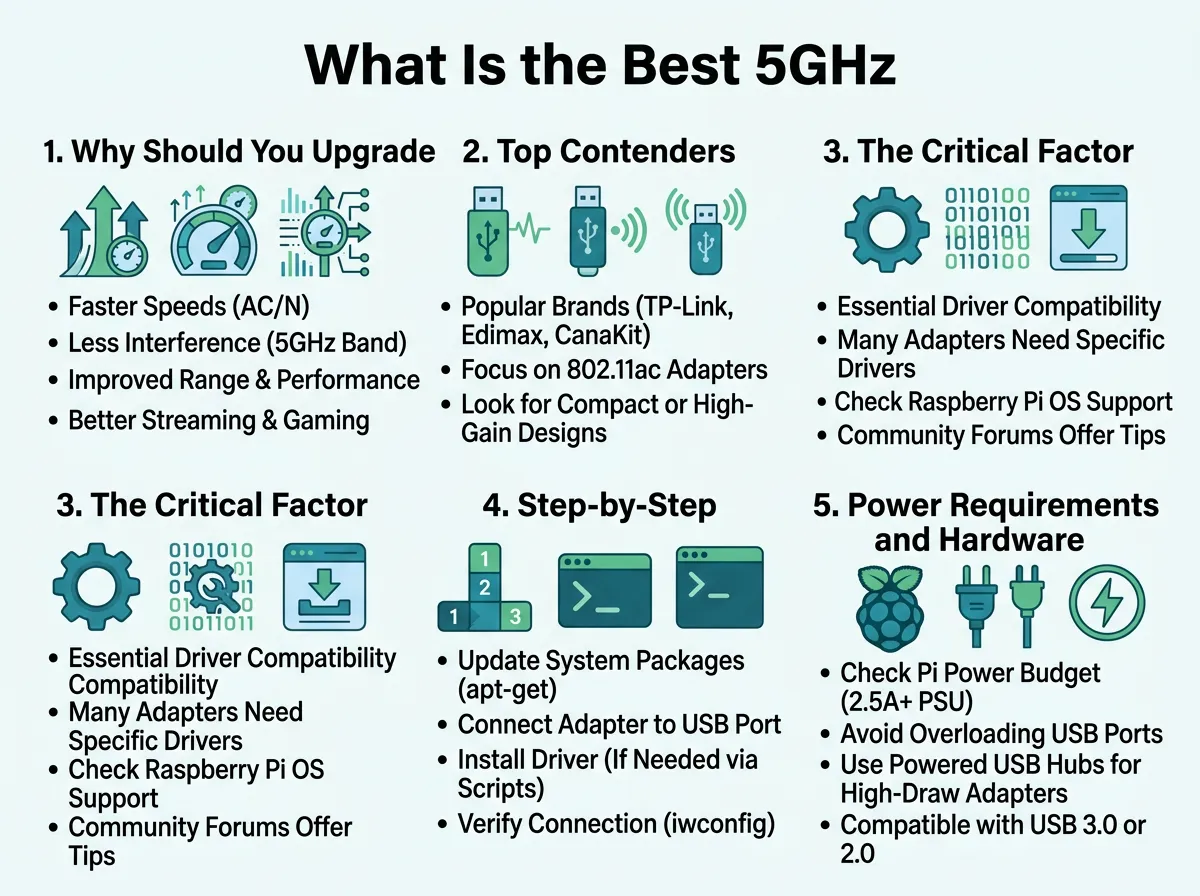
What Is the Best 5GHz Wi-Fi Adapter for a Raspberry Pi? — key points at a glance
The Gold Standard: MediaTek MT7612U
This chip is the absolute best choice for most users. It offers dual-band wireless speeds up to 867 Mbps on the 5GHz band. The absolute best part is that the drivers are built directly into Raspberry Pi OS. You do not need to install anything. You just plug it in, and it works. To find a good model, you can browse curated collections of Raspberry Pi USB WiFi adapters that feature these hassle-free chipsets.
Compact and Budget-Friendly: MediaTek MT7610U
Do you want something smaller and cheaper? Look for an adapter with the MT7610U chip. This is a compact, single-antenna design. It offers speeds up to 433 Mbps on the 5GHz band. Like its bigger brother, it works right out of the box. It is perfect for tiny projects like the Raspberry Pi Zero where space is tight.
What About Realtek Chipsets?
You will see many cheap adapters online using Realtek chips like the RTL8811AU or RTL8812BU. They promise great speeds for a low price. However, there is a catch. These chips do not have built-in drivers in the standard Linux kernel. You will have to download and compile drivers yourself. This process can be very hard for beginners. If you want an easy life, avoid these unless you love troubleshooting code.
The Critical Factor: Driver Support and Linux Compatibility
A driver is like a translator. It helps the operating system talk to the hardware. Without the right driver, your expensive USB adapter is just a warm piece of plastic.
Out-of-the-Box Support
In the world of Linux, we look for “in-tree” drivers. This means the developers of the operating system have already included the driver in the software. When you boot your Pi, it recognizes the chip instantly. MediaTek has spent years working with the Linux community. That is why their chips work so well.
The Pain of Manual Installation
If you buy an unsupported chip, you must compile the driver. This means you must open the terminal and type commands to build the driver from source code. This might work at first. But what happens when you update your Raspberry Pi? The update can break your custom driver. Suddenly, your Pi loses its internet connection. You can read about these common frustrations in active community threads on Pi forums where users discuss driver issues.
Step-by-Step: How to Install Your New Adapter
If you bought a compatible MediaTek adapter, setup is incredibly easy. Follow these simple steps to get online in seconds.
First, shut down your Raspberry Pi safely. Do not just pull the power cord. Use the menu or type the shutdown command in the terminal.
Second, insert your new USB Wi-Fi adapter into an open USB port. If you have a Raspberry Pi 4 or 5, use one of the blue USB 3.0 ports for maximum speed.
Third, plug the power back into your Pi. Let the system boot up to the desktop screen.
Fourth, click the wireless network icon in the top right corner of the desktop. You should see a list of nearby networks. Select your 5GHz network, enter your password, and click connect. You are now surfing the web at high speed!
Power Requirements and Hardware Tips
High-speed wireless adapters need a lot of electricity. They draw power directly from the USB port. If your Pi does not have enough power, it might crash or reboot.
USB 2.0 vs. USB 3.0 Ports
The older black USB 2.0 ports can only provide a small amount of power. The blue USB 3.0 ports on newer Pi boards provide much more current. Always plug your 5GHz adapter into a blue port. This keeps the adapter stable during large file transfers.
Use a Quality Power Supply
Never use a cheap phone charger to power your Raspberry Pi. These chargers often drop their voltage when the Pi gets busy. Always use the official Raspberry Pi power supply. It is designed to handle the extra load of external USB devices.
Some advanced users push their hardware even further. For example, some are now exploring ultra-fast Wi-Fi 7 on the Pi 5 using special PCIe expansion boards. While those setups offer extreme speeds, they also require careful power planning to keep the system stable.
Performance Tips and Troubleshooting
Once your adapter is plugged in, you want to make sure you get the best possible speeds. Here are a few quick tips to help you optimize your setup.
Keep the Adapter Cool
Fast 5GHz adapters can get quite warm when working hard. Do not bury your Pi inside a tight drawer or a tiny box without airflow. Keep the adapter in an open space so air can flow around it. This prevents the chip from slowing down to cool itself off.
Use a USB Extension Cable
Sometimes, the Raspberry Pi board itself can cause electronic interference. If you get a weak signal, use a short USB extension cable. This lets you place the wireless adapter a few feet away from the Pi. You can also mount the adapter higher up on a wall or shelf for a better line of sight to your router.
Conclusion
Upgrading your Raspberry Pi to 5GHz Wi-Fi is a smart move. It stops the lag, speeds up your projects, and gives you a much better experience. To avoid stress, skip the cheap adapters with missing drivers. Look for a trusted MediaTek MT7612U or MT7610U adapter. Plug it in, connect to your router, and enjoy your lightning-fast connection!
Frequently Asked Questions
Do all USB Wi-Fi adapters work with the Raspberry Pi?
No, not all adapters work out of the box. Many models require you to manually install custom drivers. To avoid this, always look for adapters with native Linux support, like those using MediaTek chips.
Can I use a 5GHz adapter on an older Raspberry Pi?
Yes, you can use these adapters on older boards like the Raspberry Pi 2 or 3. Just plug the adapter into any open USB port. Keep in mind that older boards only have USB 2.0 ports, which may slightly limit the absolute maximum speed.
What is the difference between MT7612U and MT7610U?
The MT7612U is a faster chip that supports speeds up to 867 Mbps and often has dual antennas. The MT7610U is a smaller, budget-friendly chip that supports speeds up to 433 Mbps. Both have excellent out-of-the-box driver support.
Why does my Raspberry Pi reboot when I plug in the Wi-Fi adapter?
This usually happens because the adapter draws too much power at startup. Make sure you plug the adapter in before turning on the Pi. Also, ensure you are using a high-quality, official power supply.
Should I plug my adapter into a USB 2.0 or USB 3.0 port?
You should always use a blue USB 3.0 port if your Raspberry Pi has one. USB 3.0 ports offer faster data transfer rates and provide more power to keep the adapter stable.
Do I need to disable the built-in Wi-Fi to use an external adapter?
No, you do not have to disable it. However, disabling the internal Wi-Fi can prevent confusion and save a small amount of power. You can disable it easily by adding a simple line of code to your config.txt file.
