

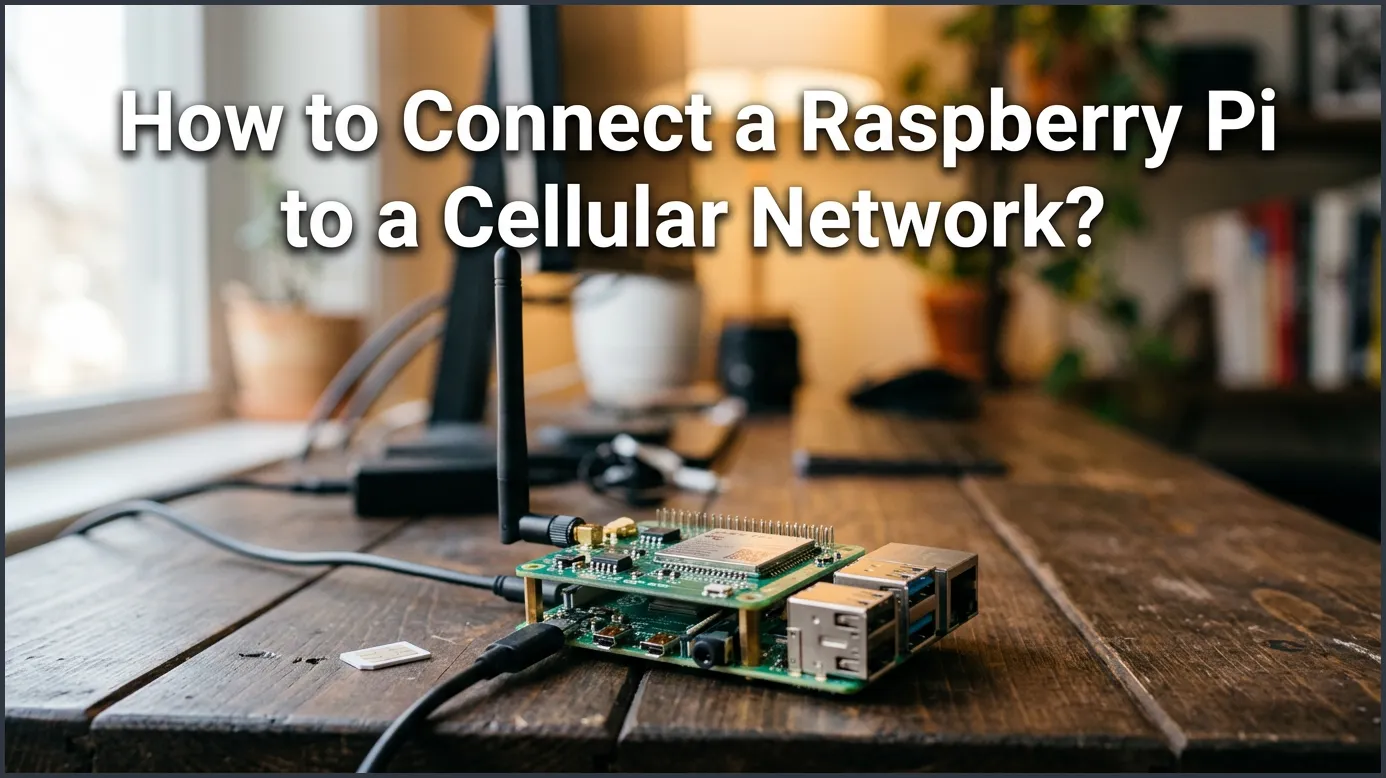
Connecting your Raspberry Pi to a cellular network requires either a USB cellular modem or an integrated cellular HAT. Once you connect the hardware and insert an active SIM card, you can easily configure the connection using Raspberry Pi OS NetworkManager tools. This simple setup allows your Pi to access the internet from almost any location with mobile service.
Imagine you want to build a remote weather station. You want to place it high up on a windy hill. Or maybe you want to build a security camera for a cabin deep in the woods. These remote places have one big problem. They do not have Wi-Fi. You cannot run long ethernet cables through the trees. How do you get your data back home?
This is where mobile networks save the day. Cellular networks cover almost the entire world. If your phone has a signal, your projects can too. We will look at how to get your Pi online without a router. We will cover the hardware you need, the software steps, and how to keep your data costs low.
By the end of this guide, you will be able to take your projects anywhere. You will no longer be trapped by the range of your home Wi-Fi network. Let us dive in and look at your options.
Key Takeaways
- Hardware Options: You can use a simple USB cellular dongle or a more integrated cellular HAT depending on your project needs.
- SIM Card Prep: Always test your SIM card in a phone first to activate it and disable any PIN lock before putting it in your Pi.
- Power Management: Cellular modules draw a lot of power, so using an external power source is crucial to prevent system crashes.
- Easy Configuration: Modern Raspberry Pi OS uses NetworkManager, which allows you to connect with a single terminal command.
- Data Optimization: Turn off automatic updates and use lightweight protocols like MQTT to keep your mobile data bills very low.
📑 Table of Contents
Why Connect Your Raspberry Pi to Cellular?
Wi-Fi is great, but it keeps you close to home. Cellular access gives you true freedom. Let us look at why you might want to make the switch.
Remote Monitoring and IoT
Many projects need to live outdoors. You might want to track wildlife, measure soil moisture, or monitor solar panels. Cellular networks let your Pi send sensor data to the cloud from the middle of a farm or forest. You can use simple systems to send tiny packets of data over long distances with ease.
Backup Internet and Failover
Home internet can go down. If you run a small home server or a smart home hub, a network outage is a big deal. You can use a cellular connection as a backup. If your main fiber line cuts out, your Raspberry Pi can switch to mobile data. This keeps your smart home online and secure at all times.
Choosing the Right Cellular Hardware
To get online, your Raspberry Pi needs some extra hardware. It does not have a built-in SIM card slot. When searching for How to Connect a Raspberry Pi to a Cellular Network? you will find that the first choice you face is hardware. You have two main options: a USB dongle or a cellular HAT.
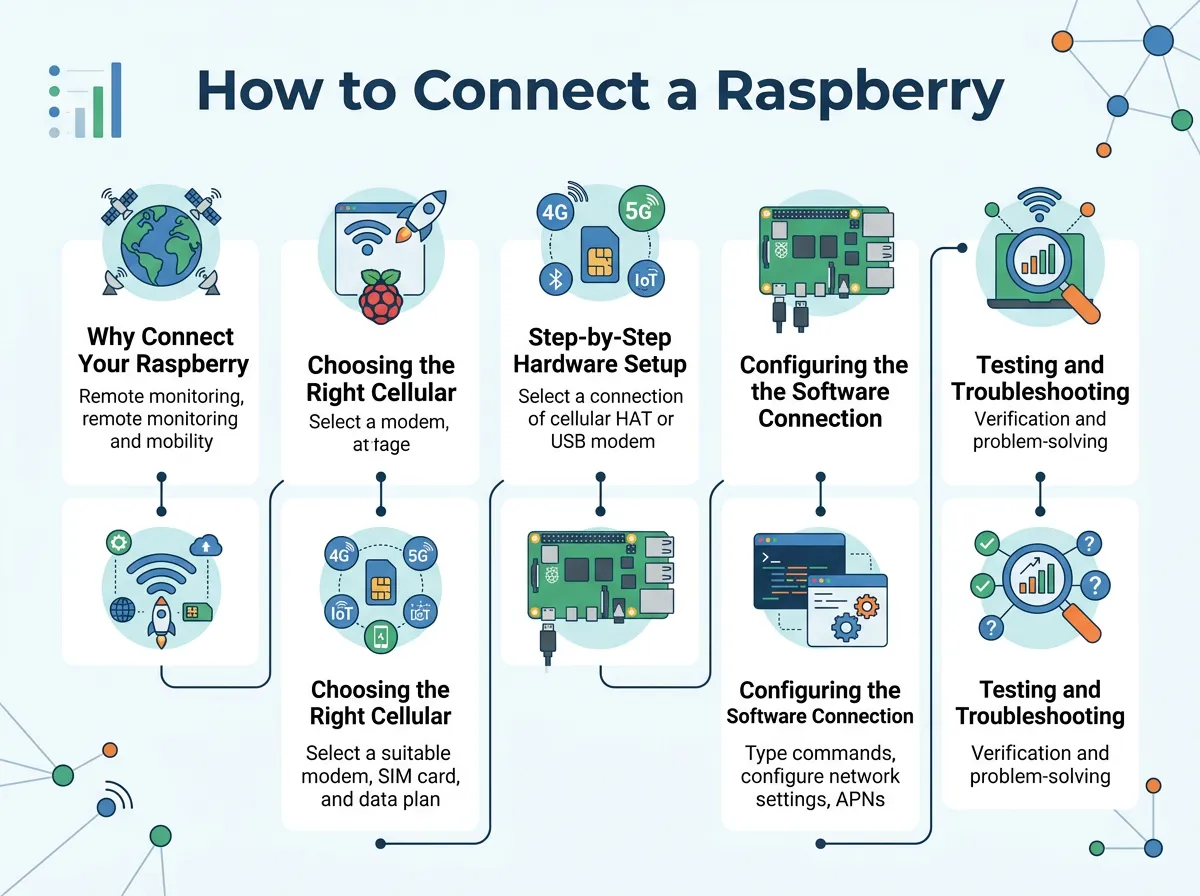
How to Connect a Raspberry Pi to a Cellular Network? — key points at a glance
USB Cellular Dongles
A USB cellular dongle looks like a large flash drive. You slide a SIM card inside it. Then, you plug it into a USB port on your Pi. They are very easy to set up. Many models work right out of the box with no extra drivers. You can also use a USB extension cable. This lets you place the dongle in a spot with a better signal. However, they stick out of the Pi, which can make the setup bulky.
Cellular HATs
A HAT is an add-on board. It sits directly on top of the Raspberry Pi’s GPIO pins. These boards often use high-speed modules. They fit neatly inside custom cases and often include GPS tracking features. This makes them highly reliable for long-term projects. On the downside, they are more expensive than USB dongles. They also require a bit more software configuration to get started.
Choosing a SIM Card and Carrier
You will need a SIM card with an active plan. Do not use your normal phone plan because it is too expensive. Instead, look for IoT SIM cards. Companies like Hologram or local budget carriers offer cheap data plans. They charge you only for the small amount of data your Pi actually uses. This can save you a lot of money over time.
Step-by-Step Hardware Setup
Before we touch the software, we must assemble the hardware correctly. Follow these simple steps to prepare your device.
Preparing the SIM Card
First, take your SIM card and put it in your mobile phone. This step is important. You need to make sure the SIM card is activated. You also need to disable the PIN lock. If the SIM card asks for a PIN code when it boots, the Raspberry Pi will not be able to connect. You can turn off the PIN lock in your phone’s security settings menu.
Attaching the Dongle or HAT
If you use a USB dongle, insert the SIM card into the slot. Plug the dongle into one of the blue USB ports on your Raspberry Pi. If you use a HAT, turn off your Pi first. Gently press the HAT onto the GPIO pins. Secure it with brass standoffs. Insert the SIM card into the HAT slot. Finally, screw the cellular antenna onto the board. Never power on a cellular module without its antenna attached. Doing so can burn out the radio chip!
Power Considerations
Cellular chips use a lot of power. When searching for a signal, they can draw up to 2 Amps of current. The USB ports on a Raspberry Pi do not always give enough power. If your Pi crashes or reboots when connecting, you need to use an external power supply. For HATs, you can often plug a micro-USB power cable directly into the HAT itself to provide extra juice.
Configuring the Software Connection
Now your hardware is ready. Let us look at how to connect a Raspberry Pi to a cellular network using software. We will use the easiest and most modern method first.
Method 1: Using NetworkManager
Modern versions of Raspberry Pi OS use NetworkManager to handle connections. This makes cellular setup very simple. We will use a tool called nmcli in the terminal.
First, open your terminal and check if your modem is detected by typing:
nmcli device
You should see an item listed as “gsm” or “cdc-wdm”. If you see it, NetworkManager knows the modem is there. Next, you need to know your carrier’s APN (Access Point Name). You can find this on your carrier’s website. Now, run this command to create a new connection. Replace “YOUR_APN” with your actual APN:
sudo nmcli connection add type gsm ifname "*" con-name cellular apn YOUR_APN
Once created, bring the connection up with this command:
sudo nmcli connection up cellular
Your Pi should now be online. You can test it by pinging a website to see if it responds.
Method 2: Using PPP and Sakis3G
If you are running an older operating system, you can use PPP (Point-to-Point Protocol). A popular script to automate this is called Sakis3G. First, install the required package by running:
sudo apt-get install ppp
Download the Sakis3G script to your Pi. This script helps find your modem and apply the right settings. Once configured, you can connect with a single command:
sudo ./sakis3g connect
This method is older but very stable for lightweight systems.
Testing and Troubleshooting Your Connection
Sometimes things do not work on the first try. Do not worry. Here is how to fix common issues.
Verifying the IP Address
To make sure you are using cellular data, check your IP address. Run the “ip addr” command in your terminal. Look for an interface named “ppp0” or “wwan0”. If it has an IP address, your cellular link is active. You are now browsing the web using mobile towers!
Auto-reconnect Scripts
Cellular networks drop connections sometimes. If your Pi is in a remote field, you cannot manually restart it. You should set up a simple script to check the connection. Create a script that pings a server every 5 minutes. If the ping fails, the script should restart the cellular connection automatically.
Tips for Managing Cellular Data and Power
Cellular plans are rarely unlimited. Power is also scarce on battery-run projects. Here are some quick tips to keep your project running efficiently.
Optimizing Data Usage
Do not let your Raspberry Pi run normal updates over cellular. A single system update can eat up gigabytes of data! Turn off all automatic updates. You should also compress your data before sending it. Use lightweight systems like MQTT instead of heavy web requests.
Power Saving Modes
If your Pi runs on solar power, you want to save every milliwatt. Many cellular HATs allow you to put the modem into a low-power sleep mode. You can wake the modem up only when you need to send data. Then, put it back to sleep. This can double your battery life.
Conclusion
Now you know how to connect a Raspberry Pi to a cellular network! Whether you use a simple USB dongle or a powerful cellular HAT, you can now take your projects far beyond the limits of Wi-Fi. With proper power management and a smart data plan, your remote setups will run smoothly for a long time. What amazing off-grid project will you build next?
Frequently Asked Questions
Can I use a regular phone SIM card in my Raspberry Pi?
Yes, you can use a normal phone SIM card, but it is usually not the best option. Standard phone plans are expensive and designed for heavy data use. It is cheaper to use a dedicated IoT SIM card that charges you only for the exact data you use.
Does the Raspberry Pi have built-in cellular support?
No, the Raspberry Pi does not have a built-in cellular modem or SIM card slot. You must purchase external hardware to connect it to a cellular network. This hardware is usually a USB dongle or a cellular HAT.
How much power does a cellular modem use?
Cellular modems can use a lot of power, especially when they transmit data. They can pull up to 2 Amps of current during peak use. To avoid crashes, you should use a strong power supply or power the cellular module separately.
Can I use 4G and 5G networks with my Raspberry Pi?
Yes, you can use both 4G LTE and 5G networks. You just need to buy a hardware module that supports those specific networks. 4G modules are very affordable, while 5G modules are faster but cost more.
How can I keep my cellular data costs low?
To save data, turn off all automatic system updates on your Raspberry Pi. You should also compress your files before sending them. Finally, use lightweight communication methods like MQTT instead of standard web requests.
What happens if the cellular signal drops?
If the signal drops, the Raspberry Pi might lose its internet connection. You can write a simple Python or Bash script that checks the connection every few minutes. If the connection fails, the script can automatically restart the interface.
