


You can easily reset your router from your phone using either your router manufacturer’s companion app or a mobile web browser. To restart it, simply log into the admin panel or app and select the reboot option. For a full factory reset, you can locate the restore defaults setting within the same mobile interface.
We have all been there. You are right in the middle of streaming your favorite show, and suddenly, the video freezes. The dreaded loading circle starts spinning. Your first instinct is to fix the Wi-Fi. But your router is tucked away in a dusty corner, hidden behind a heavy desk, or mounted high on a wall. Crawling around to pull the power plug is the last thing you want to do.
What if you could fix this issue without leaving the comfort of your couch? Thankfully, you can. Your smartphone is a powerful tool that can control almost every smart device in your home, including your internet router. In this guide, we will show you exactly How to Reset a Router From Your Phone? to save you time and hassle.
We will walk you through the simple steps to restart your system, tweak your settings, or perform a complete factory restore. Let’s dive in and get your internet back up to speed!
Key Takeaways
- App Control is Easiest: Most modern routers offer a free companion app that lets you reboot your system with a single tap.
- Browser Alternative: You can access your router’s setting page through any mobile browser by typing in its unique IP address.
- Reboot vs. Reset: A simple reboot fixes most connection issues without deleting your Wi-Fi name or password.
- Factory Reset Wipes Settings: A full factory reset restores original settings and requires a brand-new network setup.
- No Tools Needed: You do not need physical access to the router to fix minor network glitches.
- Keep Credentials Handy: Always keep your router login details written down to avoid getting locked out of your admin dashboard.
📑 Table of Contents
Reboot vs. Factory Reset: What is the Difference?
Before we explain the steps, we must understand the options. There are two very different ways to reset your device. Let’s break them down so you know which one you need for your home network.
Soft Reset (Rebooting)
A soft reset is simply restarting your device. Think of it like turning your computer off and on again. This action clears the temporary memory, stops background glitches, and refreshes your connection. It does not delete your Wi-Fi name, password, or custom settings. This is always the first step you should take when your internet feels sluggish or devices drop connection.
Hard Reset (Factory Reset)
A hard reset, or factory reset, is much more serious. This process wipes out all the custom data on your device. It restores the router to the exact state it was in when you first opened the box. You will lose your custom Wi-Fi network name, your security password, and any parental controls you set up. You should only do this if you are experiencing major connection failures or if you forgot your admin password.
Method 1: Using the Router’s Companion App
Modern routers are incredibly user-friendly. Most new models come with a dedicated smartphone app. Learning How to Reset a Router From Your Phone? using an app is the fastest method available today.
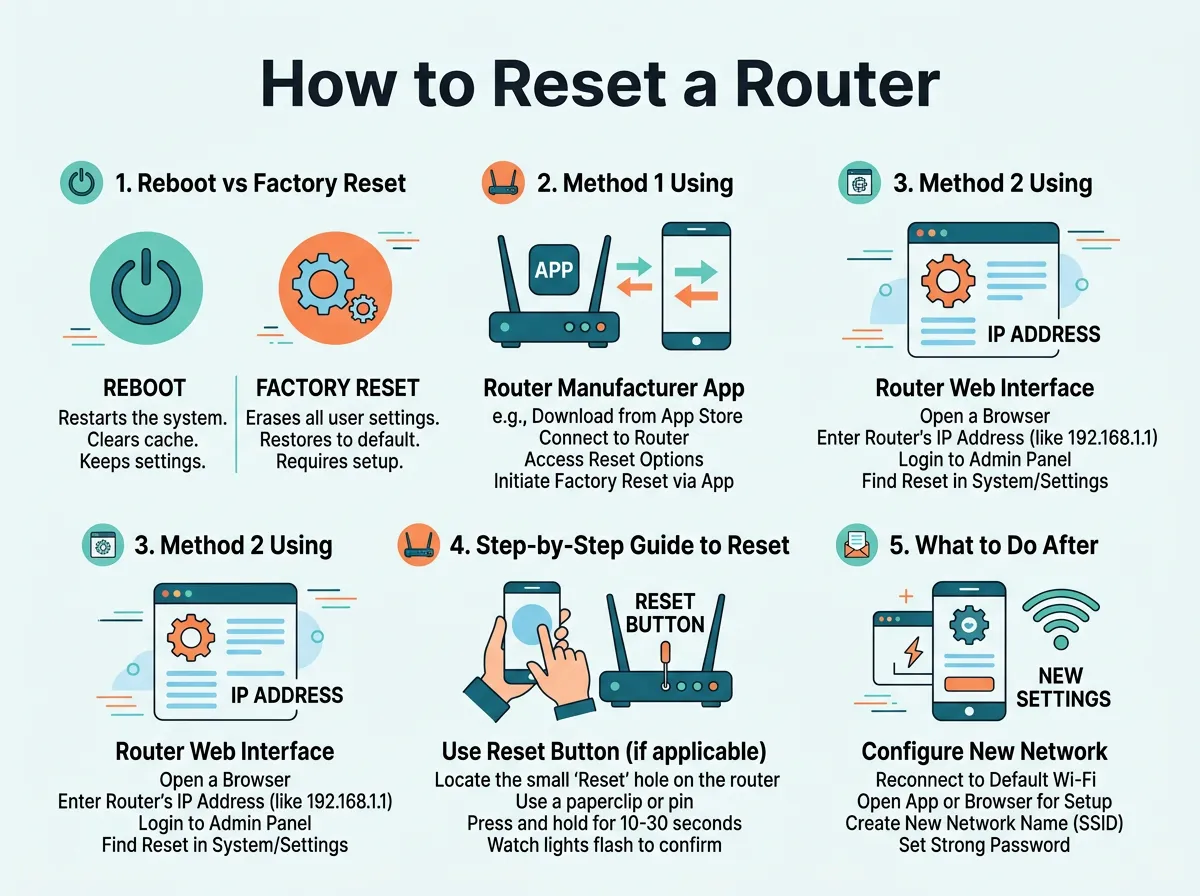
How to Reset a Router From Your Phone? — key points at a glance
Step-by-Step Guide for Router Apps
To start, make sure your phone is connected to your home Wi-Fi network. Open the app on your phone. You will see a dashboard showing your network health and connected devices. Look for a menu labeled Settings, System, or Device Management. Inside this menu, you will find a Reboot or Restart button. Tap it, and your router will turn off and turn back on. This usually takes about two to three minutes.
Popular Router Apps to Download
Depending on your brand, you will need a specific app. For Netgear, download the Nighthawk app. Linksys users should install the Linksys app. If you own an Asus router, search for the Asus Router app in your app store. TP-Link users will need the Tether app. These apps are completely free on both iOS and Android. They offer a simple, visual way to control your home network.
Method 2: Using a Mobile Web Browser
What if your router does not have an app? Or what if you never installed it on your phone? Do not worry. You can still learn How to Reset a Router From Your Phone? using any standard mobile web browser. Safari, Google Chrome, or Firefox will work perfectly.
Finding Your Router’s IP Address
To connect to your router through a browser, you need its IP address. This address is a string of numbers. Most routers use default numbers like 192.168.1.1 or 192.168.0.1. You can find this number printed on a sticker on the back of your physical router. If the sticker is missing, check your phone’s Wi-Fi settings. Tap on your connected network and look for the Router or Gateway IP address.
Accessing the Admin Dashboard on Mobile
Once you have the IP address, open your mobile browser. Type the numbers directly into the address bar and press search. You will see a login screen. Here, you must enter the admin username and password. If you never changed this, the default details are often “admin” for the username and “admin” or “password” for the password. These details are also usually printed on the router’s physical sticker.
Step-by-Step Guide to Reset via Mobile Browser
When considering How to Reset a Router From Your Phone?, utilizing the web browser interface is the most reliable backup option. Now that you are logged into the admin dashboard, you can control your device.
Logging In with Your Credentials
Enter your credentials carefully. If the page does not load, make sure your phone is actually connected to the Wi-Fi network of the router you want to change. If you are using mobile data, the browser will not be able to find the router’s local IP address. Turn off your cellular data temporarily to ensure a stable local connection.
Finding the Reset or Reboot Settings
Once inside, look for a tab called Advanced, System Tools, Administration, or Maintenance. The wording varies by brand. Look for an option that says Reboot or Restart for a quick refresh. If you need a full factory reset, look for Factory Defaults or Restore. Tap the option you want. A warning message will pop up asking if you are sure. Tap OK or Confirm to start the process.
What to Do After a Factory Reset
If you chose to do a factory reset, your router will take a few minutes to wipe its memory and restart. Once it comes back on, your old Wi-Fi network will disappear. You must set everything up again from scratch.
Setting Up a New Wi-Fi Name and Password
Look at the sticker on your router to find the default Wi-Fi name and password. Connect your phone to this temporary network. Open your companion app or mobile browser again. The system will guide you through a setup wizard. Choose a strong, unique Wi-Fi name and a secure password. This keeps your home network safe from unwanted guests.
Reconnecting Your Smart Devices
Once your new network is live, you must reconnect your devices. This includes your phone, laptop, smart TV, and smart home plugs. If you use the exact same Wi-Fi name and password as your old network, most of your devices will automatically reconnect. This is a great shortcut to save time and avoid manually updating twenty different devices!
Common Troubleshooting Tips for Mobile Resets
Sometimes, things do not go as planned. If you run into issues while trying to figure out How to Reset a Router From Your Phone?, use these quick troubleshooting tips to solve the problem.
What if the Router App Crashes?
If your companion app freezes or crashes, close it completely. Turn your phone’s Wi-Fi off and then back on. If that does not work, delete the app and download it again from the app store. Sometimes, updating your phone’s operating software can also resolve sudden app bugs.
What if You Forget Your Password?
If you changed your admin password and forgot it, you cannot log into the mobile app or browser dashboard. In this case, you must perform a physical reset. Find the tiny Reset pinhole on the back of your router. Use a paperclip to press and hold the button inside for ten seconds. This will reset the password back to the default one printed on the sticker.
Conclusion
Managing your home network does not require you to crawl under desks or deal with tangled cables. Knowing How to Reset a Router From Your Phone? gives you complete control over your internet connection right from your palm. Whether you use a handy companion app or a mobile web browser, restarting your router is quick and painless. Use a simple reboot for minor glitches, and save the factory reset for major issues. Keep your login credentials handy, and you will always have a fast, reliable connection. Happy browsing!
Frequently Asked Questions
How do I log into my router from my phone?
Connect your phone to your router’s Wi-Fi network. Open a web browser and type the router’s IP address, which is usually 192.168.1.1 or 192.168.0.1, into the address bar. Enter the admin username and password found on the router’s sticker to log in.
Will resetting my router delete my Wi-Fi password?
A simple reboot or soft reset will not delete your Wi-Fi password or settings. However, a factory reset will wipe all custom settings and restore the default password printed on the router’s label.
What is the IP address for my router?
Most routers use a default IP address like 192.168.1.1 or 192.168.0.1. You can find this number printed on a sticker on the back of your router or in your smartphone’s Wi-Fi connection settings.
Can I reset my router if I am not home?
Yes, you can reset your router remotely if your router’s companion app supports cloud management. You must enable remote management features in the app settings while you are connected to your home network first.
Why is my router app not connecting to my router?
Make sure your phone’s Wi-Fi is turned on and connected directly to your home network. If you are using cellular mobile data, the app will not be able to find your router locally.
How long does it take for a router to reset?
A standard reboot usually takes about two to three minutes to complete. A full factory reset may take up to five minutes as the system wipes its memory and boots up with default settings.
