


Running a job on an IoT device involves defining a target task within a management platform and pushing the instructions to your device. By using secure MQTT or HTTP connections, the device receives this job document, executes the commands, and reports its progress back to the cloud. This simple, automated workflow allows you to update firmware, change settings, or run diagnostics across millions of smart units at once.
Imagine you have a fleet of smart devices spread across the globe. You might have ten smart lights in your home, or ten thousand sensors in a smart factory. One day, you need to update their software. Walking to each device with a USB drive is simply not an option. You need a fast, secure, and remote way to get the task done. This is where remote jobs come into play, making your life as a developer or network admin much simpler.
Learning How to Run a Job on an IoT Device? is one of the most useful skills you can develop in the tech world today. It saves you time, cuts down on travel costs, and keeps your hardware secure. In this guide, we will break down the entire process. We will look at what a job is, how to set it up, and how to run it safely without breaking your devices. Whether you are a hobbyist or managing a large network, these steps will guide you through the process.
Key Takeaways
- Remote Management: IoT jobs let you manage devices anywhere in the world without physical access.
- Job Documents: These files are typically simple JSON documents that detail the exact steps your device must run.
- Status Tracking: Real-time feedback helps you see if a task succeeds, fails, or is still in progress.
- Smart Target Selection: You can target a single device or group them for larger, staged rollouts.
- Reliable Libraries: Pre-built SDKs simplify writing device agent software.
📑 Table of Contents
What is an IoT Job?
An IoT job is a set of remote tasks that you send to your devices. You can think of it as a remote to-do list. You write down what you want your devices to do, and your cloud platform delivers this list. The devices read the list, do the work, and tell you when they are done. This automated loop is the backbone of modern device management.
The Core Concept
At its heart, a job is just a message. This message travels from your server to your device. It contains clear instructions. These instructions might tell the device to reboot, run a test, or download new software. Once the device finishes the task, it sends a reply. This loop keeps you updated on every single unit in your network, making it simple to track progress.
Common Use Cases
Why would you need to understand How to Run a Job on an IoT Device? in your daily work? Here are a few common reasons:
- Firmware Updates: Sending new code to fix bugs, patch security gaps, or add new features.
- System Reboots: Restarting devices that have been running for too long to clear memory.
- Configuration Changes: Changing how often a device sends sensor data back to the cloud.
- Running Diagnostics: Checking the health of your hardware when something goes wrong.
The Core Components of an IoT Job
Before you run your first job, you need to understand the pieces involved. There are three main parts to this puzzle: the target, the document, and the status tracking. Knowing how these interact is key when learning How to Run a Job on an IoT Device? successfully.
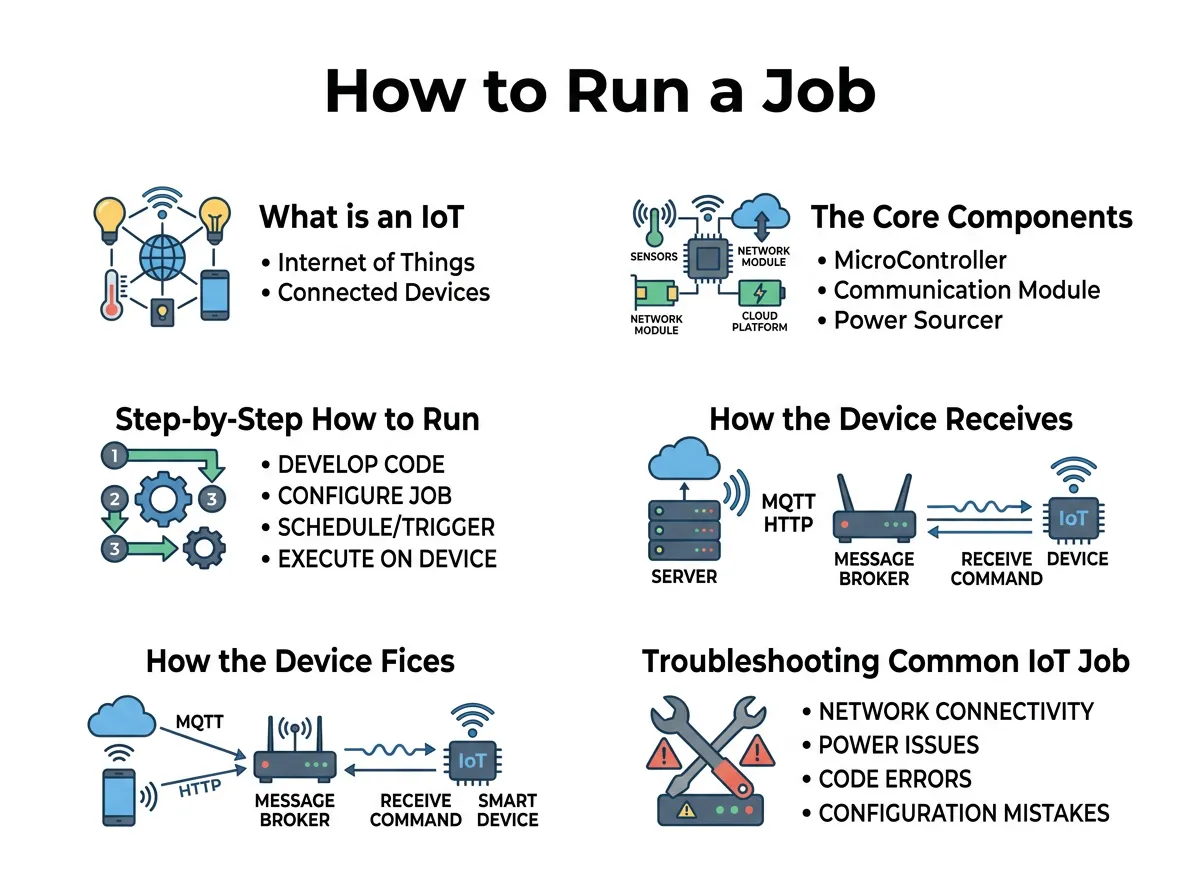
How to Run a Job on an IoT Device? — key points at a glance
The Target Devices
Your targets are the devices that will do the work. You can send a job to one single device. Or, you can send it to a group of devices. In large setups, you might group devices by location, type, or version. Knowing your targets is the first rule of How to Run a Job on an IoT Device? safely. This makes it easy to target only the devices that need the work, saving bandwidth and time.
The Job Document
The job document is the actual file that holds your instructions. It is usually a small text file written in JSON. This file tells the device what files to download and what commands to run. When you plan a job, you can make things easy by creating reusable job templates. This saves you from writing new code every single time you want to send a task.
Step-by-Step: How to Run a Job on an IoT Device?
Now, let us look at the exact steps to get your first job running. While different cloud tools have different menus, the basic workflow is always the same. Here is a clear guide on How to Run a Job on an IoT Device? step-by-step.
Step 1: Prep Your Device
First, your device must be ready to listen. It must have a stable internet connection. If you want to know How to Run a Job on an IoT Device?, start by checking your device status. It also needs a local program, called an agent, running on it. This agent listens for messages from your cloud server. If the agent is not running, the device will never know that a job is waiting for it. Make sure your ports are open and your device is authenticated.
Step 2: Create a Job Document
Next, you must write your job document. Keep this file simple. Here is a basic example of what a reboot job document looks like:
{
  "action": "reboot",
  "delay": 10
}
This simple file tells the device to restart after a ten-second delay. For more complex tasks, you might need to write rules for downloading files. You can find detailed guides on processing job documents on the device to make sure your agent reads these files correctly.
Step 3: Schedule and Send the Job
Once your document is ready, you upload it to your IoT cloud platform. You then select your target devices. You can choose to run the job right away, or you can schedule it for later. For instance, you might want to run updates late at night when no one is using the devices. This keeps user disruption to a minimum.
How the Device Receives and Runs the Job
When you trigger the job in the cloud, a lot of quick steps happen in the background. The communication must be fast and secure. Understanding this phase is a major part of mastering How to Run a Job on an IoT Device? without errors.
Setting up the Agent
Your device needs code that knows how to talk to the cloud. Many developers use pre-made code libraries to handle this. For example, using the official AWS IoT embedded SDK for jobs is a great way to save time. It handles all the complex network code for you. This allows you to focus on writing the actual tasks for your hardware.
Executing the Commands
The device agent gets a ping from the cloud. It downloads the job document and reads it. It then starts the task. While it works, it sends status updates back to the cloud. These updates usually show as “In Progress,” “Succeeded,” or “Failed.” This keeps you informed in real-time, letting you know exactly how the task is going.
Troubleshooting Common IoT Job Issues
Even with the best planning, things can sometimes go wrong. When you are learning How to Run a Job on an IoT Device?, you should know how to fix common problems.
Device Offline
If your device is offline, it cannot get the job document. Most cloud tools will queue the job. This means the device will run the job as soon as it reconnects. Always check your network settings and make sure your device has a strong signal before sending large files.
Parsing Errors
Sometimes, a job fails because of a typo in the job document. If the JSON syntax is wrong, the device agent cannot read it. It will flag the job as failed. Always validate your JSON files using a free online tool before you send them to your devices.
Best Practices for Managing IoT Jobs
Running a job on one device is simple. Running jobs on ten thousand devices can be risky. If you make a mistake, you could break every device at once. Here are some smart tips to keep your fleet safe while running remote tasks.
Roll out in Stages
Never send a job to all your devices at the same time. Start with a small test group first. This is often called a canary test. If the job works well on your test devices, you can send it to more. If it fails, you only have a few broken devices to fix instead of your whole fleet.
Monitor Progress and Errors
Watch your dashboard while a job runs. If you see a high rate of failures, stop the job. Most modern IoT platforms let you set abort rules. For example, you can tell the system to stop the job if more than five percent of your devices fail to update. This protects your network from widespread outages.
Conclusion
Learning How to Run a Job on an IoT Device? is a game-changer for anyone working with smart hardware. It turns a manual chore into an easy, automated flow. By using clear job documents, simple agents, and staged rollouts, you can manage your devices with total confidence. Start with simple tasks like a reboot, and soon you will be managing complex updates across thousands of devices with ease!
Frequently Asked Questions
What is an IoT job document?
An IoT job document is a JSON file that contains instructions for a device. It lists commands, file locations, and parameters needed to complete a task. The device agent downloads and reads this file to execute the job.
Can I run a job on an offline IoT device?
No, the device must be online to receive the initial command. However, most IoT platforms will queue the job so that the device runs it automatically once it reconnects to the network.
How do I know if my IoT job succeeded?
The local agent on your device sends status updates back to your cloud platform. You can monitor these updates in real-time on your cloud console, which will display states like In Progress, Succeeded, or Failed.
What happens if an IoT job fails?
If a job fails, the device reports the error to the cloud and stops executing the task. You can set up your platform to rollback changes or stop the deployment to other devices to prevent wider network issues.
Do I need to write custom code for the device agent?
While you can write custom code, it is usually much faster to use official pre-built SDKs. Major cloud providers offer ready-made SDKs that handle the connection and document processing for you.
Can I schedule an IoT job for later?
Yes, most IoT cloud platforms allow you to schedule jobs. You can run them immediately, schedule them for a specific time, or set them to run during quiet maintenance hours.
