


If your Tile tracker is not updating its location, the issue is usually caused by disabled Bluetooth, restricted background app permissions, or an outdated operating system. You can quickly fix this by enabling “Always Allow” location access, turning your Bluetooth off and on, or restarting your smartphone.
We have all been there. You are rushing out the door, already ten minutes late for work, and your car keys are nowhere to be found. You confidently pull out your phone, open the tracking app, and prepare to follow the sweet sound of your Bluetooth finder. But instead of a live map, you see a timestamp from three days ago. Your stomach drops as you realize your smart tracker is completely offline.
You might find yourself staring at your screen and wondering, Why Is My Tile Not Updating Its Location? This situation is incredibly common, and it can happen to anyone. Fortunately, you do not need to be a tech genius to solve this puzzle. Most of the time, the fix is just a few taps away in your phone settings.
In this guide, we will break down exactly how these trackers work, explore the most common reasons they get stuck, and walk you through step-by-step solutions. By the end of this article, you will know how to get your tracker back online and ensure your valuables are always accounted for.
Key Takeaways
- Bluetooth is Crucial: Since Tile relies on Bluetooth, a temporary glitch or disabled Bluetooth will completely stop location updates.
- Location Permissions Matter: Your phone’s location services must be set to “Always Allow” for the Tile app to track in the background.
- Background App Refresh: If your phone restricts background data, the Tile app cannot report the tracker’s position when closed.
- The Tile Network: When out of your personal Bluetooth range, your Tile relies on other Tile and Life360 users to update its location anonymously.
- Battery and Software: Low battery power or outdated system software can cause syncing delays and hardware communication drops.
📑 Table of Contents
1. Understanding How Tile Tracks Your Things
To fix the issue, it helps to understand how these little trackers communicate with your phone. Unlike a car GPS navigation system, a small Bluetooth tracker does not have a direct, active cellular connection. It relies entirely on your phone to know where it is in the world.
Bluetooth Range vs. GPS Tracking
Your tracker is constantly broadcasting a unique Bluetooth signal. When your phone is nearby, it hears this signal and logs your location using your phone’s built-in GPS. If you walk away from your keys, your phone remembers the exact spot where it last heard that Bluetooth signal. If your Bluetooth is turned off, or if the app is closed, this communication chain breaks instantly.
The Power of the Tile Network
What happens when you leave your wallet at a coffee shop across town? Your phone is too far away to hear the Bluetooth signal. This is where the community comes into play. When another user with the tracking app walks past your lost item, their phone will detect the signal. It then securely and privately updates the location on your map.
Understanding how Tile uses location services is essential to getting the most out of your device. Without active participation from nearby phones, a lost tracker far from home cannot update its coordinates on its own.
2. Common Culprits Behind Location Update Failures
When you are searching for answers to Why Is My Tile Not Updating Its Location?, the very first thing you must inspect is your wireless connection. Because these trackers are highly dependent on your smartphone, minor changes in your phone’s software can cause major disruptions.
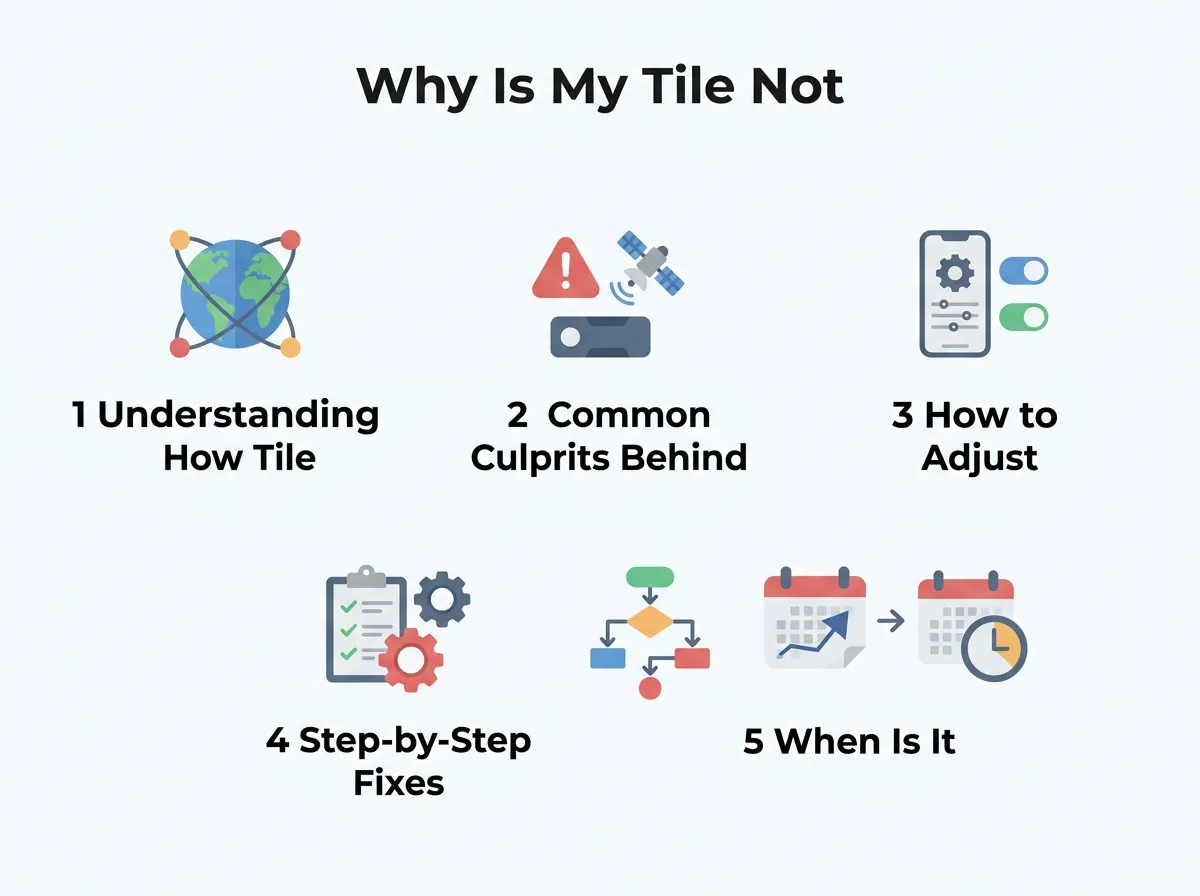
Why Is My Tile Not Updating Its Location? — key points at a glance
Disabled or Glitched Bluetooth
Sometimes, we turn off Bluetooth to save battery or connect to a smart speaker, and we simply forget to turn it back on. Other times, your phone’s Bluetooth chip can experience a silent software crash. The phone might look like it has Bluetooth enabled, but it is not actually scanning for nearby devices.
Restrictive Phone Settings
Modern smartphones are very aggressive when it comes to saving battery life. Both Apple and Google have built smart features into iOS and Android that put “idle” apps to sleep. If your phone decides that your tracking app has been running in the background for too long, it might shut it down. Once the app is closed, it can no longer listen for your tracker’s signal.
Dead or Dying Batteries
Your tracker runs on a small coin-cell battery. While these batteries are designed to last for a year or two, they do eventually run out of juice. As the battery weakens, the signal strength drops. This means your phone needs to be much closer to the tracker to detect it, and eventually, the signal disappears completely. If you suspect this is the case, checking the official guide on Tile detector updates can help you determine if your hardware is still functioning.
3. How to Adjust Your Smartphone Settings for Tile
Most location tracking errors are caused by permission issues on your phone. To make sure your tracker works flawlessly in the background, you need to grant it the right privileges. Let’s look at how to do this on both major mobile platforms.
Tweaking iOS Settings for Apple Users
If you are using an iPhone, Apple’s privacy features might be blocking your tracker. Follow these quick steps to make sure your app has the access it needs:
- Open your iPhone Settings.
- Scroll down and tap on Tile.
- Tap on Location and make sure it is set to Always. If it is set to “While Using the App,” your tracker will stop updating the moment you lock your screen.
- Toggle on Precise Location for maximum accuracy.
- Go back and ensure that Bluetooth and Background App Refresh are both switched on.
Tweaking Android Settings
Android devices have similar settings, though the names might vary slightly depending on your phone’s manufacturer. Here is the general path to take:
- Open your phone’s Settings app.
- Go to Apps or Applications and select the Tile app.
- Tap on Permissions, then select Location.
- Set the permission to Allow all the time.
- Find the Battery or Battery Optimization setting within the app details page and set it to Unrestricted. This prevents your phone from putting the app to sleep.
4. Step-by-Step Fixes to Get Your Tile Back Online
If your settings are correct but you are still asking, Why Is My Tile Not Updating Its Location?, it is time for some active troubleshooting. These quick steps will solve nearly 90% of all tracking issues.
The Classic Turn It Off and On Again
Do not underestimate the power of a simple reboot. Turn off your phone’s Bluetooth, wait about ten seconds, and turn it back on. If that does not work, restart your entire smartphone. This clears out temporary system bugs and forces your phone to establish fresh connections with all nearby Bluetooth accessories.
Sign Out and Sign Back In
Sometimes, the issue lies within the app’s server sync. Open your tracking app, go to your profile settings, and log out of your account. Force close the app, open it again, and log back in. This simple refresh can jumpstart your dashboard and force a location update.
Reinstall the App
If a simple log-out does not do the trick, try deleting the app entirely. Reinstalling the app from the App Store or Google Play Store ensures you have the latest software version and resets all system permissions from scratch. If you still run into trouble with strange map coordinates after a clean install, reading about troubleshooting incorrect Tile locations can guide you through deeper system-level fixes.
5. When Is It Time to Replace Your Tile?
If you have tried every setting adjustment and your phone still refuses to find your tracker, you might be dealing with a physical hardware limitation. No gadget lasts forever, and trackers are no exception.
Checking Battery Status
Most modern trackers will send a warning notification to your phone when the battery is running low. However, if the battery dies suddenly, you might not get this warning. If your tracker is more than a year old and has a replaceable battery, try buying a new CR2032 or CR1632 battery and swapping it out. If your model does not have a replaceable battery, it may be time to recycle the device and purchase a replacement.
Physical Damage and Water Wear
While these trackers are built to be tough, they live on our keychains, inside our bags, and on our pet collars. Over time, drops, bumps, and exposure to moisture can damage the internal circuit board. If your tracker has visible cracks or has been submerged in water, the internal Bluetooth transmitter might have failed permanently.
Conclusion
It can be incredibly frustrating to open your app and see old data, especially when you are actively trying to find something you lost. However, asking Why Is My Tile Not Updating Its Location? is the first step to securing your peace of mind. By ensuring your Bluetooth is active, setting your location permissions to “Always Allow,” and performing a quick system restart, you can almost always get your tracker working perfectly again.
Keep your phone’s software updated, check your tracker’s battery once a year, and you will never have to worry about losing your keys in a rush again!
Frequently Asked Questions
Why does my Tile show a location from hours ago?
This usually happens because the Tile app was closed in the background or your phone’s Bluetooth was turned off. Without an active background connection, your phone cannot update the tracker’s location on the map.
Does my Tile use GPS to track my items?
No, Tile trackers do not have built-in GPS chips. Instead, they use Bluetooth to connect to your smartphone, using your phone’s GPS to log the tracker’s last known location.
How do I force my Tile to update its location?
To force an update, make sure your phone’s Bluetooth is enabled and open the Tile app. Walk close to where you believe the tracker is located to allow the two devices to establish a fresh connection.
Why is my Tile not connecting even when it is next to me?
This is often caused by a temporary Bluetooth glitch on your phone. Try turning your phone’s Bluetooth off and on again, or restart your smartphone to clear out the connection error.
Can a dead battery cause my Tile to stop updating?
Yes, if the battery in your Tile is completely dead, the device cannot broadcast its Bluetooth signal. Your phone will only show the last location recorded before the battery ran out of power.
How often does the Tile location update?
Your Tile’s location updates continuously as long as it is within Bluetooth range of your phone with the app open. If it is out of range, the location will only update when another user in the Tile network passes near it.
